WiFi Rainbow scans every access point your adapter can hear and answers, in one window: which networks are nearby, how strong each one is, how much they crowd each other, which channel would be quieter, and which encryption your own connection is really using.
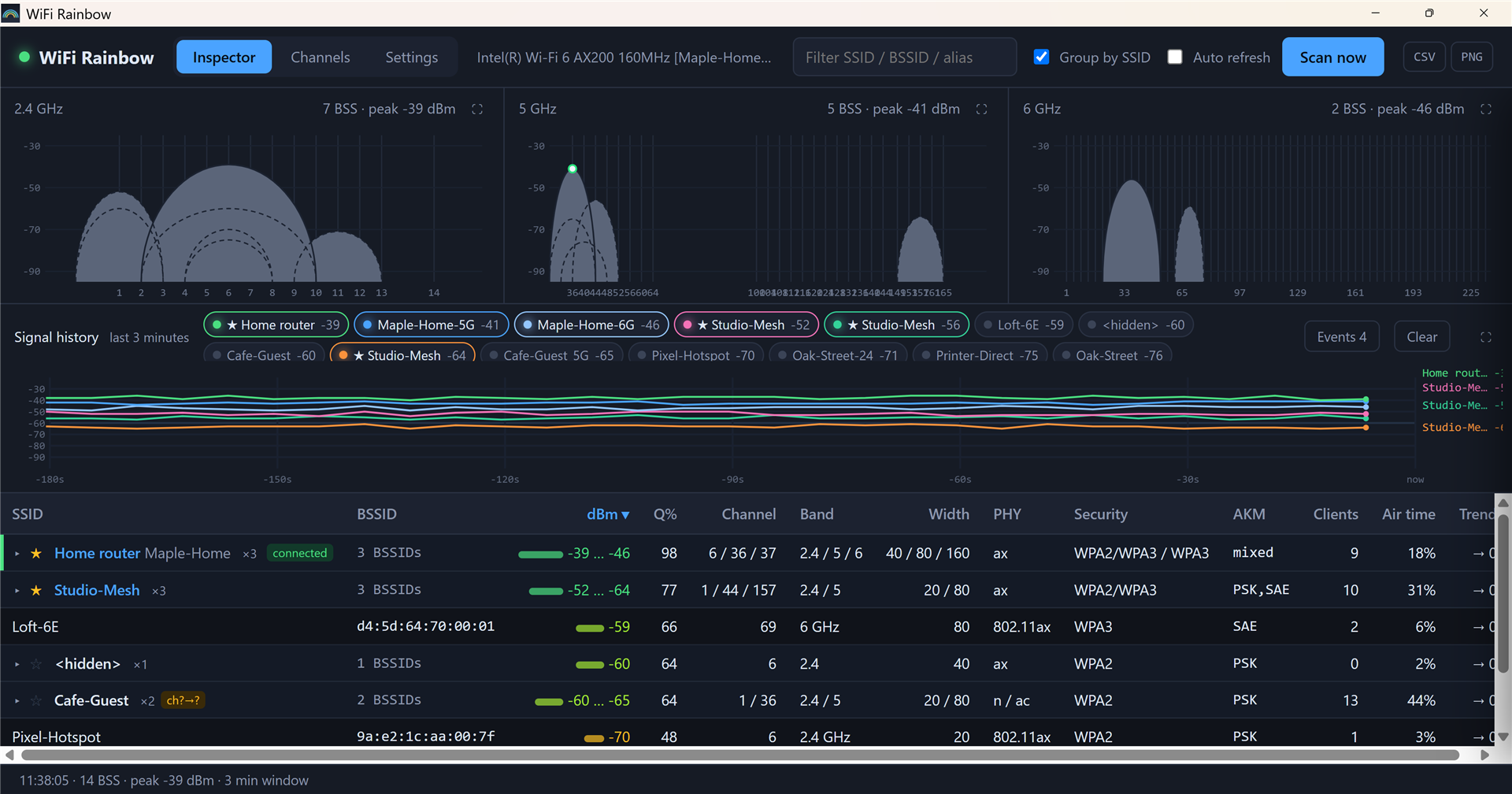
One chart each for 2.4, 5 and 6 GHz. Every access point is an arc: the wider the arc, the wider the channel it occupies; the taller, the stronger the signal. A weak arc hidden behind a strong one turns dashed instead of disappearing.
Works out how much each access point overlaps its neighbours, scores every channel for crowding, and recommends the quietest one (on 5 GHz it avoids the radar-detection DFS channels).
Keeps three minutes of signal history per access point and turns the differences between scans into events: who appeared, who vanished, whose signal clearly dropped, who changed channel or width.
The access point you are connected to is marked on the charts and in the list, together with the authentication and cipher the system actually negotiated, the current link rate and quality. A router "supporting WPA3" and you "actually using WPA3" are two different things; this shows the latter.
The 2.4, 5 and 6 GHz radios of one router fold into a single row, so the list stays short. Give a network your own name, such as "Home router"; star the ones you check often and their curves are drawn by default.
Save the current list as a CSV table with the same columns as on screen, or the current view as a PNG image. Both go to your Downloads folder.
The main view. Three band charts on top, the last three minutes of signal history in the middle, the access point list at the bottom. "Group by SSID" is on in the screenshot, so the radios of one router are folded into a single row; click it to expand.
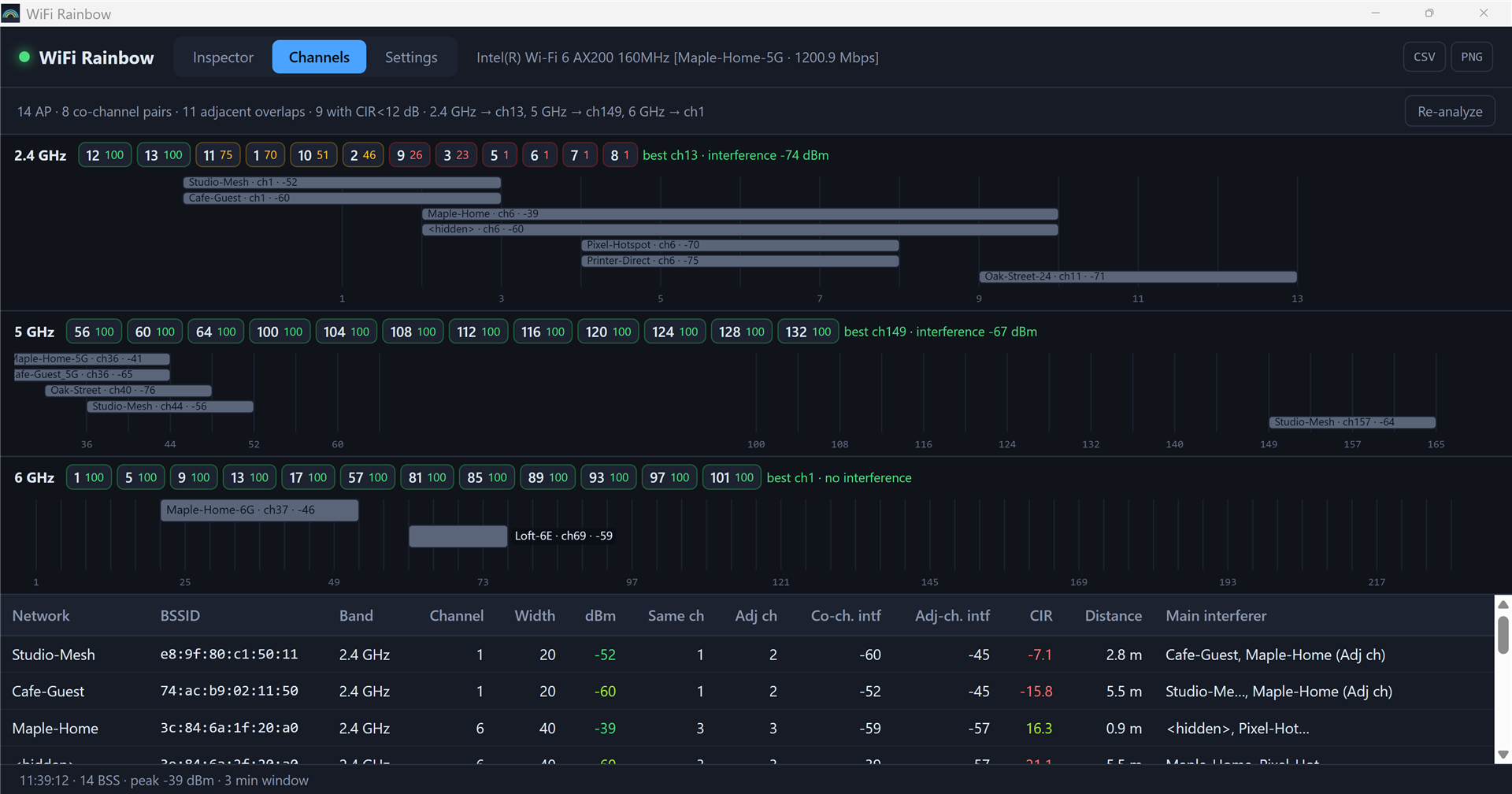
One row per band: the crowding score of each channel (more green is quieter) with the recommended channel, then a spectrum view where each access point is a bar as wide as the channel it uses. Below that, the interference table: how many co-channel and adjacent-channel neighbours each access point has, its carrier-to-interference ratio, and who interferes most. Hover a channel number: access points on that channel turn blue, those that merely overlap and interfere with it turn amber, and the rest dim.
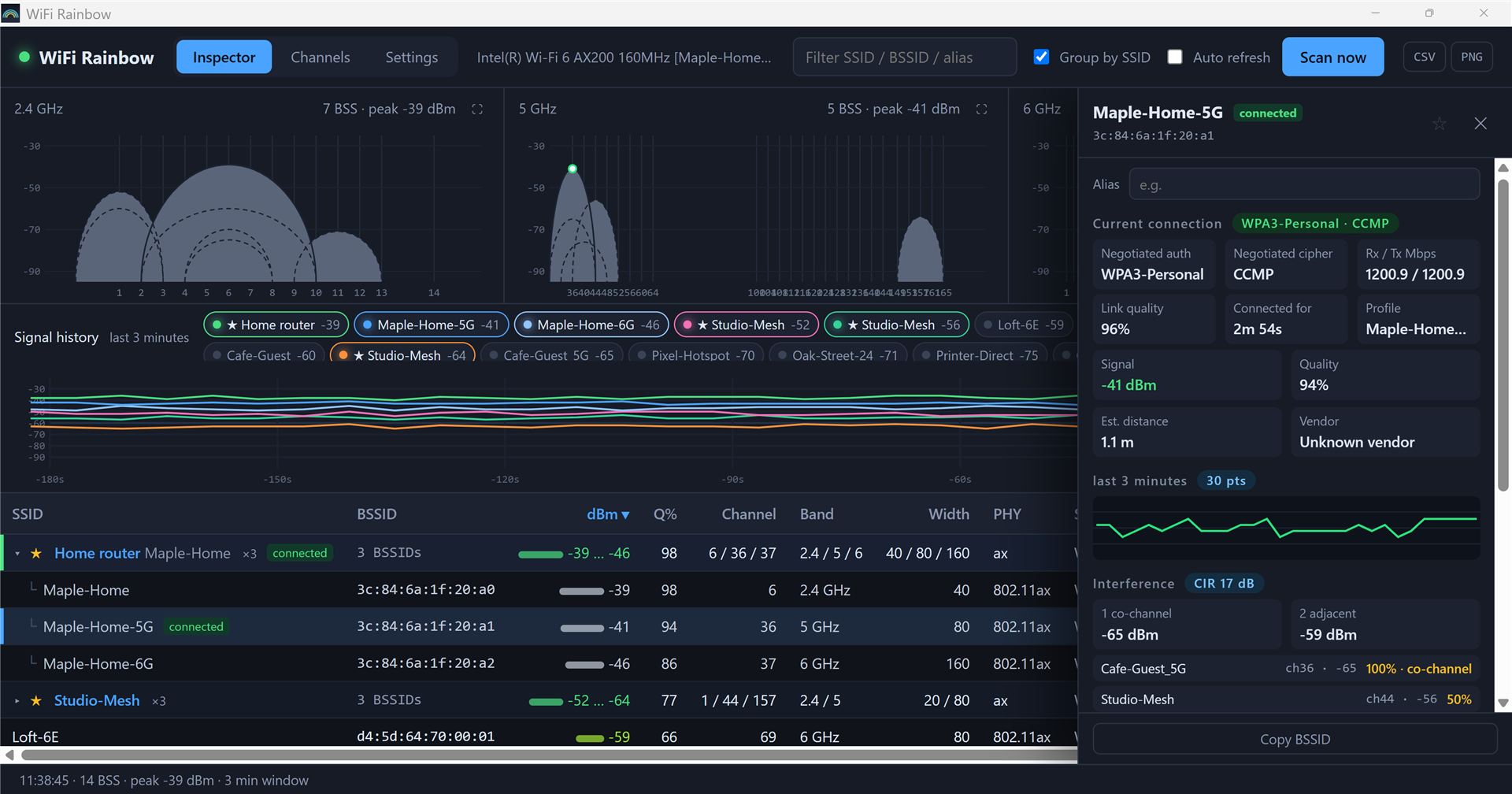
Click any access point in the list or on a chart and its details slide in from the right. The screenshot shows the connected one, so it has an extra "Current connection" block: negotiated authentication and cipher, link rate, link quality, time connected. Below are a three-minute sparkline, the interference profile and the radio parameters.
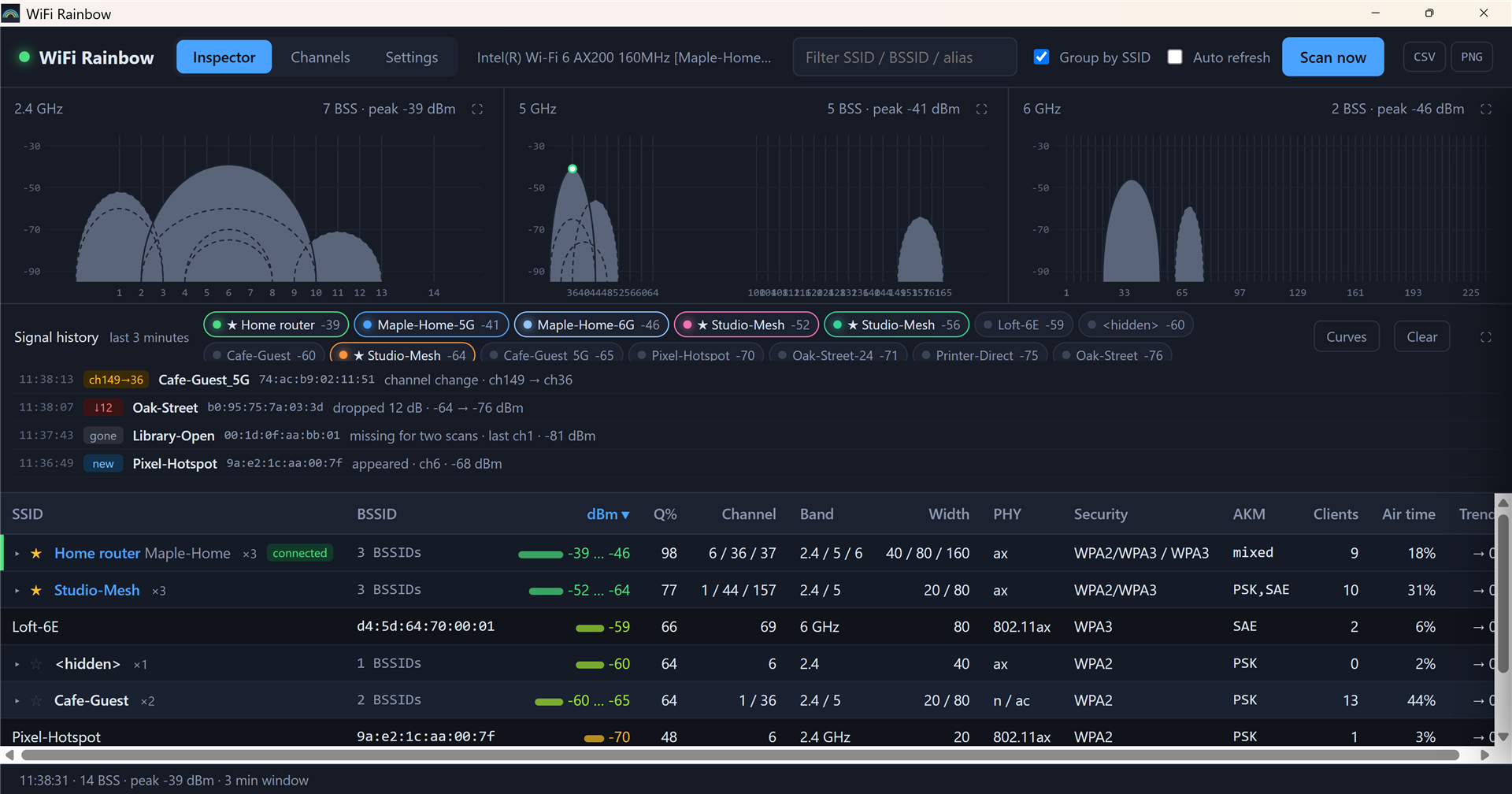
Press the "Events" button at the top right of the signal history panel and the panel switches from curves to a list of changes. Each row is one change, left to right: time, type badge, network name, BSSID, description. The screenshot shows four: Pixel-Hotspot appeared; Library-Open was missing for two scans and is reported gone; Oak-Street dropped 12 dB; Cafe-Guest_5G moved from channel 149 to 36. Click a row to open the details of that access point.
The screenshots come from the built-in demo mode; all network names are fictional.
Everything comes from the wireless API that ships with Windows (Native Wifi). No driver to install, no special adapter needed; an ordinary laptop card is fine. The program calls that API directly from Rust, with no third-party dependencies.
Channel width, WPA2 versus WPA3, the cipher in use, how many devices are connected: the system API does not hand these over. The program reads them field by field from the beacon frames that routers broadcast.
Windows has no monitor mode, so the data comes from a scan roughly every two seconds; momentary fluctuations are invisible. The channel score adds up the strength of overlapping signals and compares them. That is enough to tell which channel is quieter, but it is not a measurement of actual speed.
WiFi-Rainbow_<version>_x64-setup.exe from GitHub Releases. WiFi Rainbow